Subscribe To Our Regular Email Updates
How to Customize Gmail Themes With Your Own Image
Video Guide: Introducing Custom Themes in Gmail
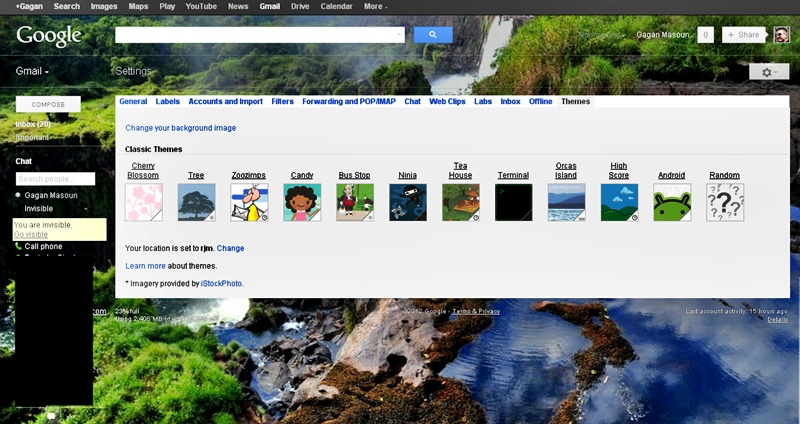
My Gmail Account Theme As A Demo
- Go To Gmail -> Settings -> Themes
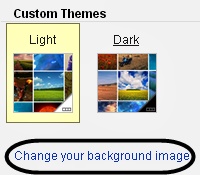
- Now, Scroll Down -> Custom Themes -> Click On Light or Dark
- Choose Image & Click On Select
- Its Done, You Will See Image On Your Gmail Background
| Click On Image For Large Size View |
|
Ads |
|
|
Subscribe via Email
|
Read It“There are 6 options available now, Featured, My Photos, Photos From Phone, Upload Photos, Paste A URL, Recently Selected”Do you know that Google launching custom Gmail themes. Are you bored from all the themes that Google offers to spice up your Gmail? Well, now you can customize your inbox with your own photos.Now you’ll be able to select backgrounds from your Google+ photos, upload your own photo directly, or paste any image URL.
You can also browse Google’s searchable Featured Photos section to find one you like. Google first added image uploading in April“Find your perfect image and make your Gmail your own with custom themes.” When you add your own background photo, you’ll get to choose between two themes for the rest of the interface — light and dark.